
Notifications
The point of a shared ledger is that everyone can see it. Splitini can tell you the moment something in it moves: an expense you’re part of, or a payment with your name on it.
Four things produce a notification, and nothing else does. No reminders, no nudges, no weekly summaries, and never an expense you aren’t part of:
- an expense you share was added, changed or removed;
- a payment naming you as payer or payee was recorded;
- someone added you to a group;
- someone invited you to a group.
You’re asked once, and not at the start
Section titled “You’re asked once, and not at the start”Nothing is sent to your phone — and nothing that identifies your phone is stored — until you say yes. Splitini doesn’t ask at launch either, when the honest answer to “why does this app want to notify me?” is “no idea yet”. It asks once, on your groups list, after you’re actually in a group, and it explains what it will send before you decide.
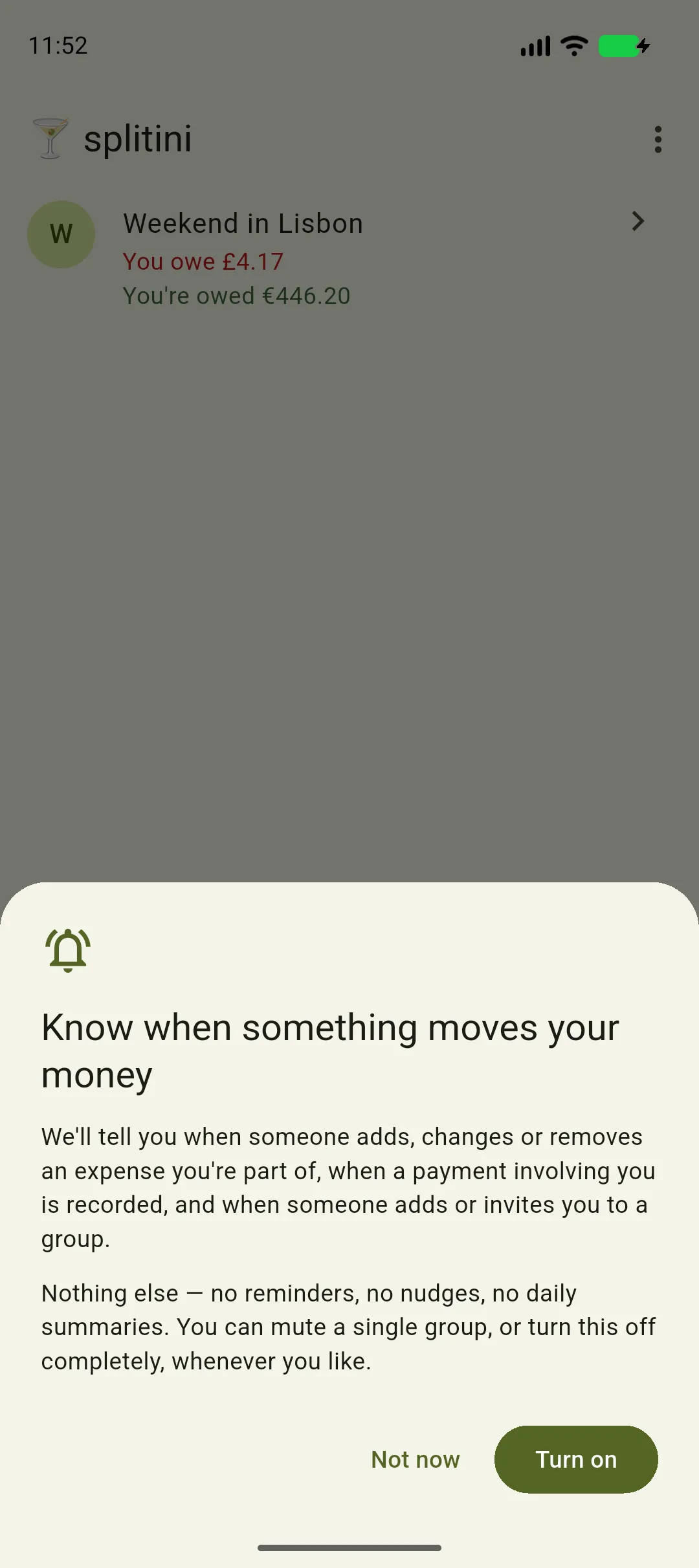
Asked once, with the reasons in front of you
Section titled “Asked once, with the reasons in front of you”The sheet spells out all four things before you choose — expenses you’re in, payments involving you, and being added or invited to a group — and says plainly that there is nothing else.
Say Not now and you’re not asked again. Everything else works exactly as before — your changes still send, your balances are still right; you just find out when you next open the app. You can turn notifications on later from Profile → Notifications whenever you like.
What one actually says
Section titled “What one actually says”A notification you can’t act on without unlocking your phone and opening an app isn’t worth much, so Splitini’s say who did what, where, and what it means for you.
An expense reads like this:
Gabriele added an expense in Trip to Lisbon
Dinner at Ramiro · €48.00 · you owe €12.00
The last part is the one that matters, and it’s yours specifically: you owe €12.00 is your share of that bill, not the total. Change the expense and it becomes you now owe; remove it and it becomes you no longer owe. If you were the one who paid, it says you paid the full amount instead.
A recorded payment reads like this:
Payment recorded in Trip to Lisbon
Marta says they paid you €40.00.
Note the phrasing: says they paid you. A settlement is one person’s account of something that happened outside the app, and if it’s wrong, this notification is how you find out in time to say so.
Being added to a group names the person who added you. An invitation is the one exception to all of this — it says only that an invite is waiting, never who sent it or which group it’s for. Anyone who knows your email address can send one, and nothing about a stranger is verified, so there’s nothing there worth repeating to you.
Tapping any of them opens the group it’s about.
Several at once become one
Section titled “Several at once become one”Add five expenses to a trip in five minutes and nobody wants five lines on their lock screen. Splitini combines them:
3 new expenses in Trip to Lisbon
Open Splitini to see them.
The same happens for changes, removals and payments, each kept separate from the others so the sentence stays true to what happened.
Nothing arrives while you’re looking at the app
Section titled “Nothing arrives while you’re looking at the app”If you’re in Splitini when something happens, you don’t get a notification — the screen updates instead, usually within a second or two. Notifications are for when you’re somewhere else. (More on live updates in Using Splitini offline.)
Two kinds, and your phone knows the difference
Section titled “Two kinds, and your phone knows the difference”Splitini’s notifications come in two kinds:
- Group activity — expenses added, changed or removed, and groups you’re added or invited to.
- Payments — when someone records that you paid them, or that they paid you.
Payments is deliberately the louder of the two, and arrives with more prominence. Everything under Group activity is something you can catch up on later; a payment is someone asserting that money changed hands between the two of you. That’s the one worth interrupting you for, because it’s the one you’d want to correct quickly if it were wrong.
On Android the two are separate channels in your phone’s app settings, so if expense chatter from a busy trip is too much you can silence Group activity and keep Payments. iPhone has no per-channel switch; the difference shows up in how insistently a payment arrives.
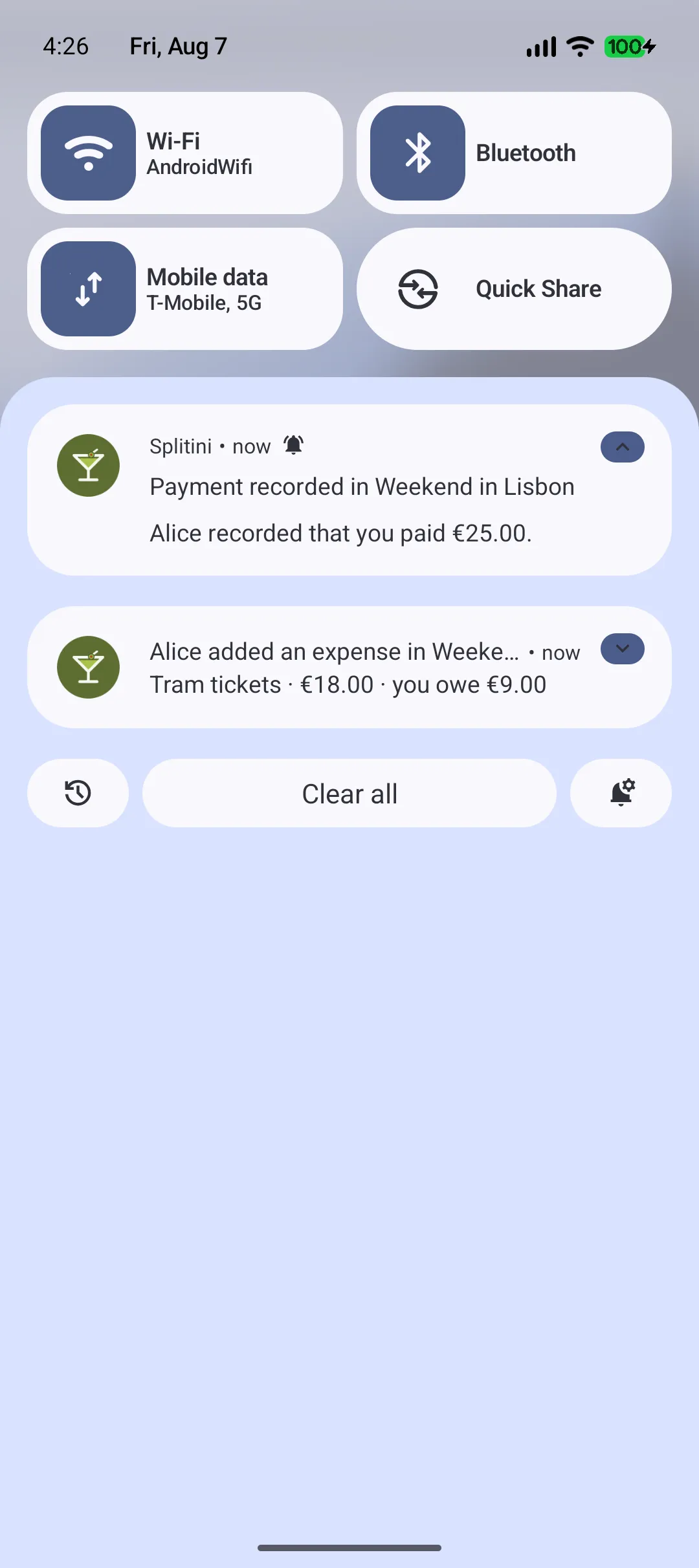
Both kinds, side by side
Section titled “Both kinds, side by side”The payment names who recorded it and the amount. The expense carries the description, the total, and the part that is yours — the number you’d actually want to check.
Silencing one group
Section titled “Silencing one group”One group generating everything and the rest quiet? Open that group, tap the gear in the corner, and switch on Mute this group. You stop being notified about expenses and payments there, and everywhere else carries on unchanged. Flip it back whenever you want.
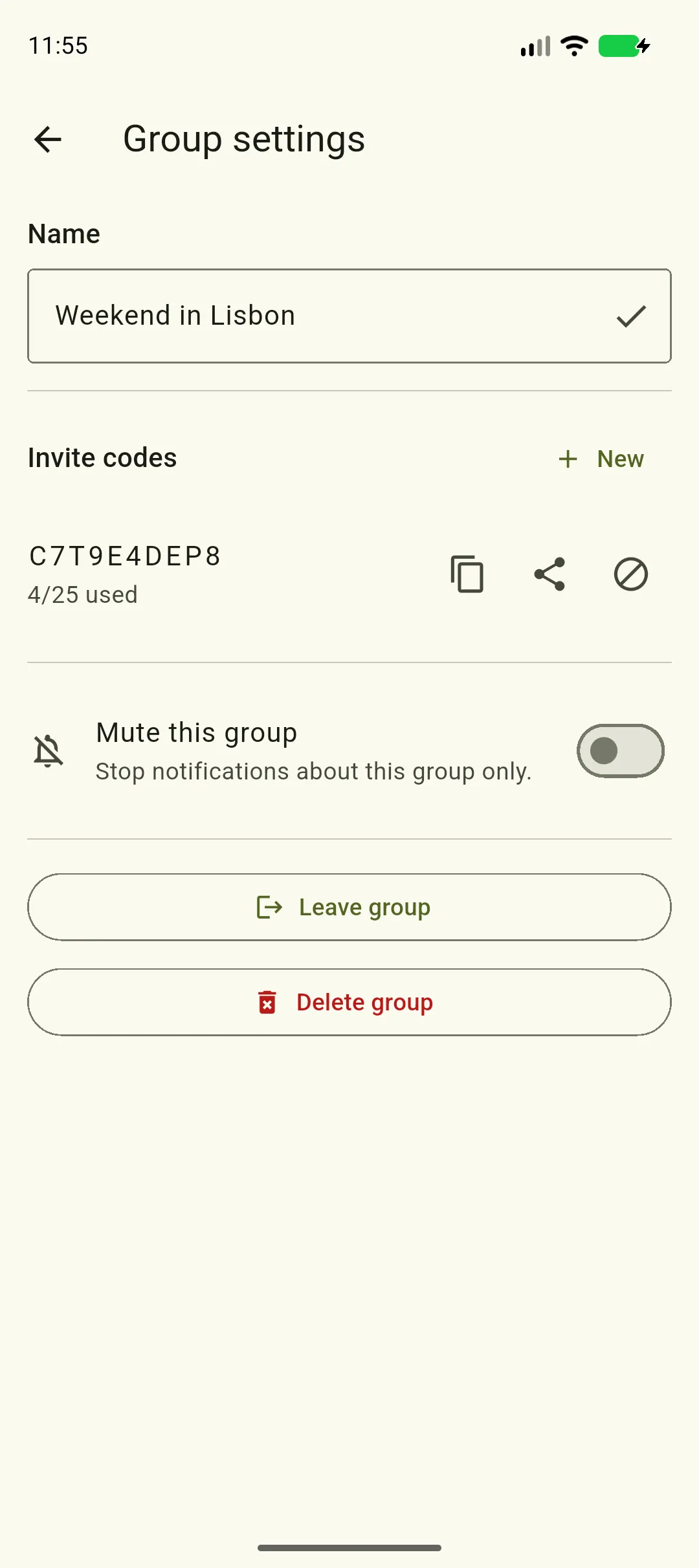
One switch, on the group itself
Section titled “One switch, on the group itself”It lives with the group’s other settings, so muting is where you’d look for it — and it only ever affects that group.
Turning them off entirely
Section titled “Turning them off entirely”Profile → Notifications has a single switch, plus the same list of the four things we send, so you can always check what you agreed to. Turn it off and your phone stops being registered for notifications altogether — nothing is sent, and the identifier for your installation is removed.
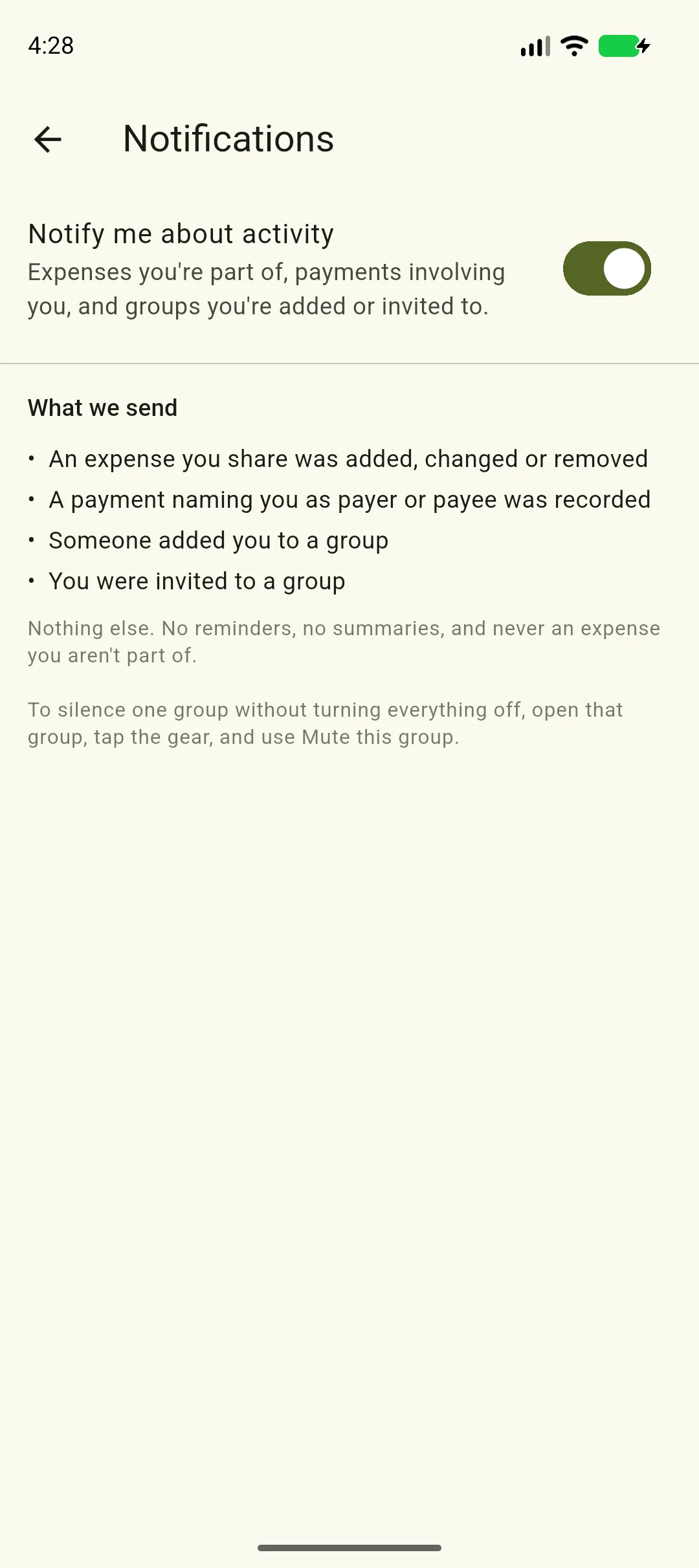
The list stays on the screen
Section titled “The list stays on the screen”Not just at the moment you opt in. What we send is written out here for as long as notifications are on, so you can check it against what actually arrives.
If your phone is blocking them
Section titled “If your phone is blocking them”Notifications can be switched on in Splitini and off in your phone at the same time — usually because the permission was declined once, or turned off later in your phone’s settings. Then nothing arrives, and there’s no way for an app to tell you that from inside a notification.
On iPhone the permission is asked once per install. Decline it and iOS will not ask again, so the only way back is the button below.
So a banner appears at the top of your groups list instead, saying your phone settings are blocking them. Tap it and it takes you straight to the right screen. The same warning, with an Open phone settings button, sits on the Notifications screen.
You’ll only ever see it if you asked for notifications in the first place — it’s a broken promise being reported, not a prompt to opt in.
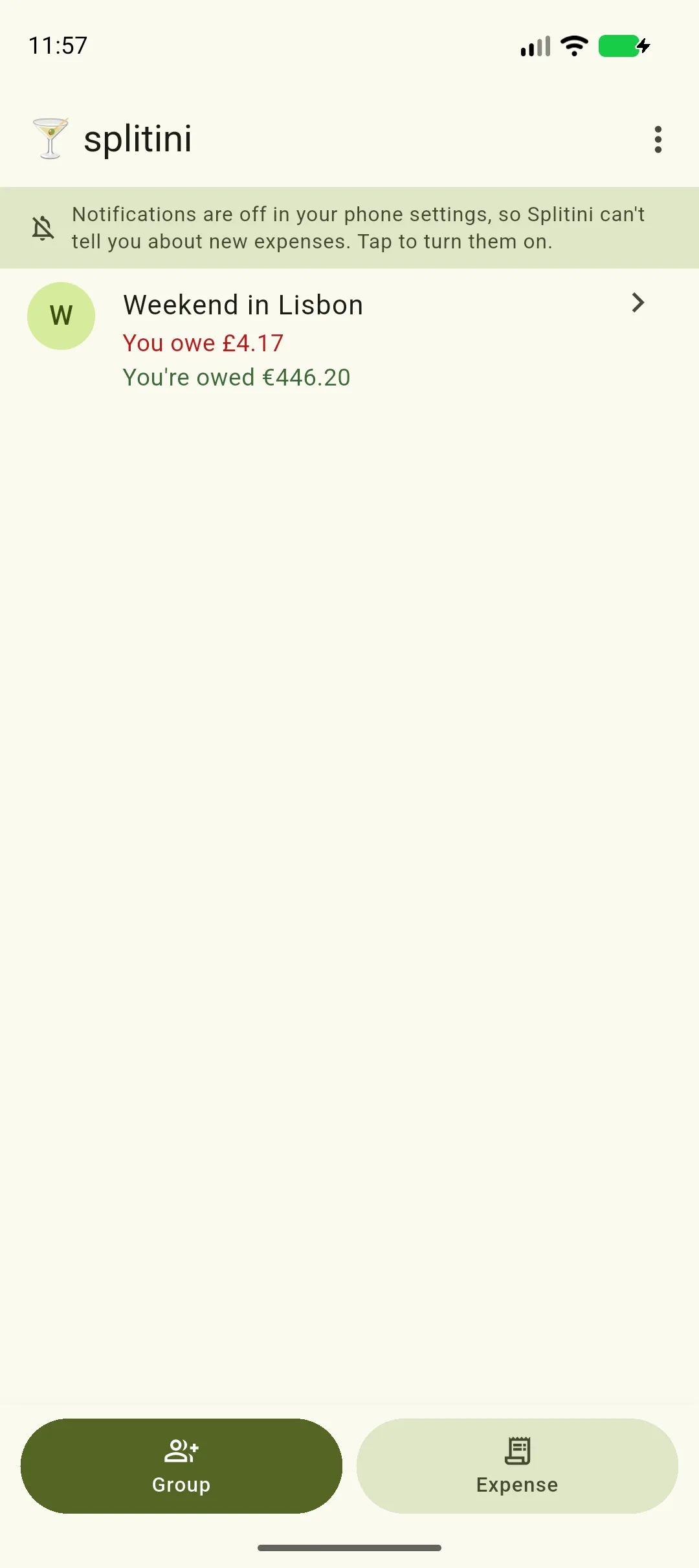
It tells you, rather than going quiet
Section titled “It tells you, rather than going quiet”Tapping the banner opens the right page in your phone’s settings directly, so there is no hunting through menus.