
Receipts
Splitini can read a receipt for you. Point the camera at it, and the description, the amount, the currency, the date and a category arrive already filled in — and the photograph stays attached to the expense, so anyone in the group can look at it later instead of taking your word for the total.
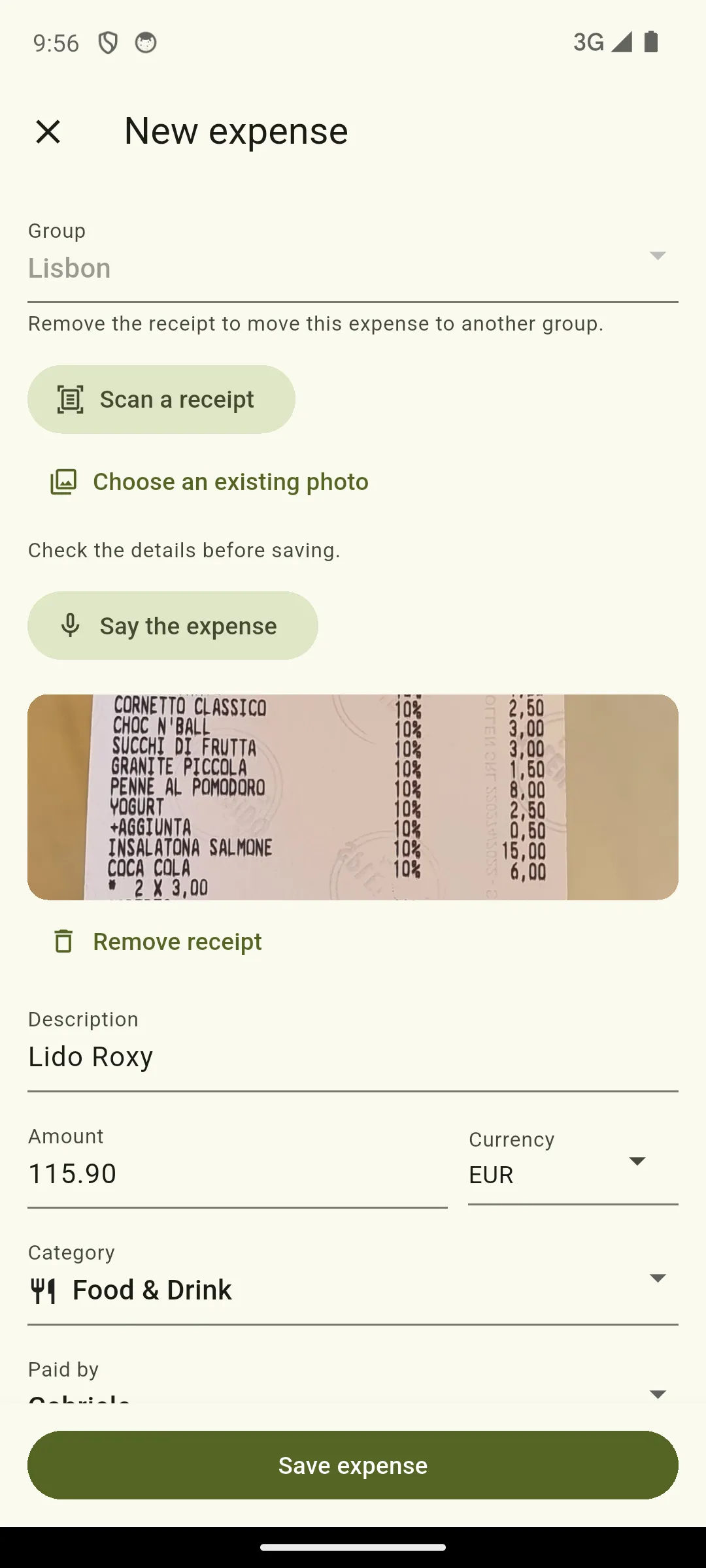
One photograph of a real till receipt, sideways on a table, in Italian. The description, the total, the currency, the date and the category all arrived filled in — and the picture stayed with the expense.
Everything is an ordinary field. Nothing is saved until you tap Save expense.
Scanning one
Section titled “Scanning one”Tap Expense and you get four ways to start. Two of them scan a receipt:
- Scan receipt opens the camera, for the receipt in your hand right now;
- Receipt from gallery picks one you photographed earlier, or that someone sent you.
They sit next to each other, told apart by their icons — a camera and a receipt — and each opens its own source directly. There is no menu in between asking which you meant.
The same four are on the groups list and inside a group. From the list, the expense opens on the group you were looking at and you can change it; from inside a group, it already knows where the expense belongs.
The first time, Splitini asks for your permission, and names who reads the picture: it is sent to Google’s Gemini to be read, and to nobody else. Say no and the form still works — you type the expense as you always could.
What it fills in, and what it leaves alone
Section titled “What it fills in, and what it leaves alone”Only empty fields. If you have already typed a description and then scan for the amount, your words stay exactly as you wrote them, and Splitini says underneath that it left them alone.
A few receipts do not come out cleanly, and Splitini tells you which case you are in rather than guessing:
| What you see | What happened |
|---|---|
| “Check the details before saving.” | It read the receipt. Give it a glance. |
| “We couldn’t read the amount…” | The picture was fine, the total was not legible. |
| “…in USD, which Splitini can’t store yet” | A currency Splitini does not handle. Enter the amount and currency yourself. |
| “We couldn’t read that receipt.” | Try a clearer photo, or type it in. |
| “Scanning needs a connection.” | Everything else on the form works offline — this one thing does not. |
If a scan fails after the photo was taken — a dropped connection, a slow moment — there is a Try again right under the message. It reuses the picture you already took. A receipt is usually in a bin by the time you notice, so Splitini does not ask you to photograph it twice.
Looking at a receipt later
Section titled “Looking at a receipt later”An expense with a receipt shows a small marker in the group’s expense list, and the picture itself at the top of the expense. Tap it to open it full screen, where you can pinch to zoom — receipts are small print photographed from a distance, and that is usually the point of opening one.
Everyone in the group can see it. That is the whole reason it is attached.
Removing one
Section titled “Removing one”Open the expense, tap Edit, then Remove receipt, and save. The picture is deleted once the change has actually gone through — so a removal you make while offline is not lost, and does not leave the expense pointing at a photograph that is no longer there.
Removing the receipt does not change the expense. The amount, the split and everyone’s balance stay exactly as they were.
Where a receipt lives
Section titled “Where a receipt lives”A receipt belongs to its group. On a new expense you can pick any group you are in, and a receipt you have already attached comes with you — Splitini moves the stored photograph into the new group as you change it. If that does not work, usually because you are offline, the group stays where it was and the receipt stays attached; nothing is half-moved.
Once the expense is saved, its group is fixed for good, and so is its receipt. Changing which group an expense belongs to would rewrite two sets of balances, so Splitini does not offer it.
What it costs you
Section titled “What it costs you”Nothing. Scanning is included, and there is no per-scan charge. Splitini caps what it spends overall, so very occasionally a scan will say it has reached its limit for the month — the form still works, and so does typing.